Register for the MCAA Annual Conference 2026: Step-by-step instructions for securing your spot
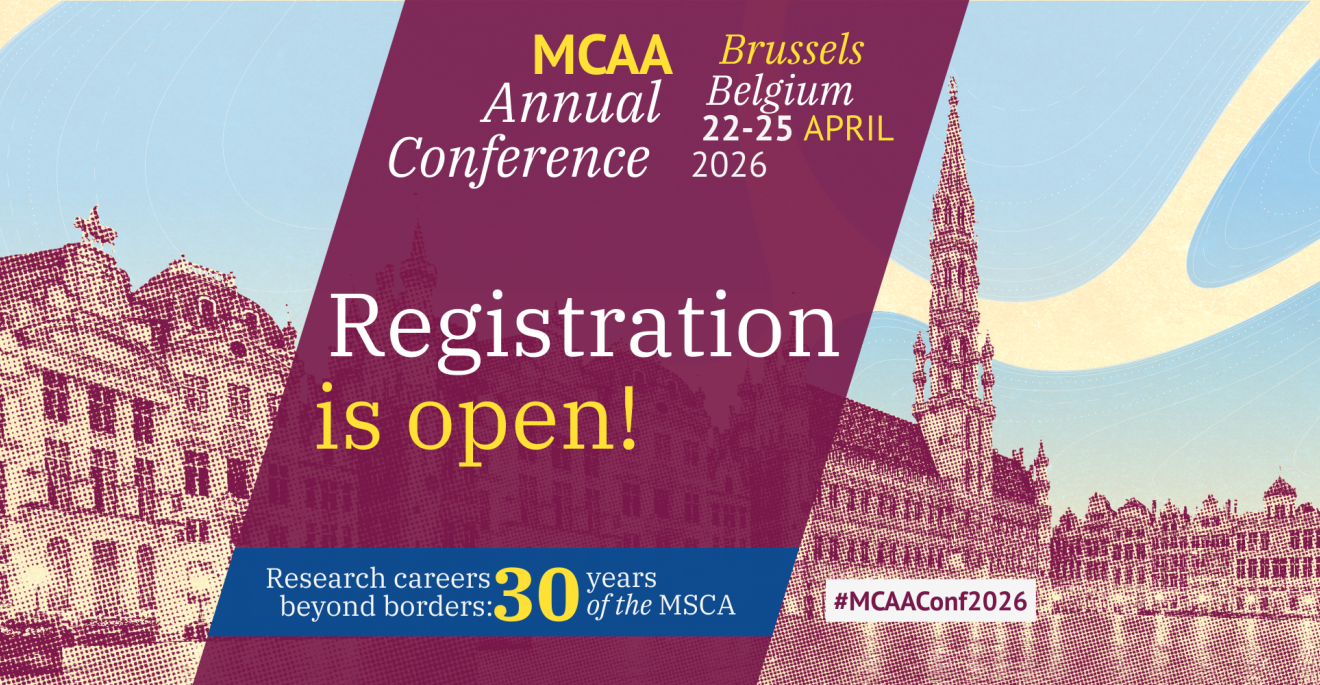
The Marie Curie Alumni Association (MCAA) Annual Conference welcomes hundreds of researchers, policymakers, and innovators to Brussels and online on 22–25 April 2026. Register for our annual flagship event by following these instructions!
We’re excited to announce that registration for the MCAA Annual Conference is open! With the 2026 edition of our flagship event, we join the celebrations of the 30th anniversary of the Marie Skłodowska-Curie Actions (MSCA) under the theme “Research careers beyond borders: 30 years of the MSCA.”
Below are detailed instructions for registering for the Annual Conference, the gala dinner, and satellite events, all scheduled for 22–25 April.
Take advantage of the early bird rate by registering for the MCAA Annual Conference before 26 March. The regular registration deadline is 10 April.
Instructions for registering for the MCAA Annual Conference 2026
Step 1: Select the events and activities you want to register for
The registration link will direct you to the Whova event platform, where you can select all the events and activities you want to attend, including the Annual Conference, the gala dinner, and satellite events.
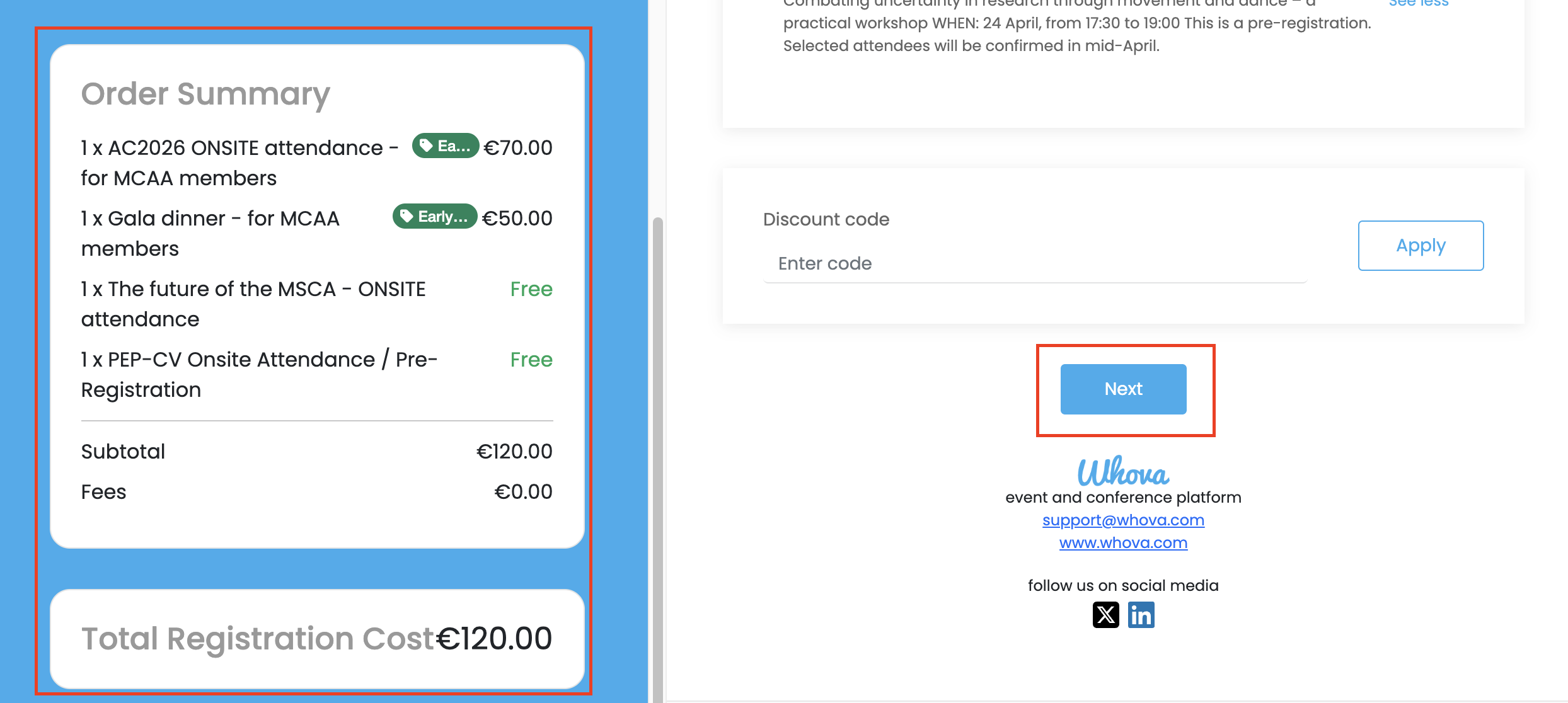
By clicking “See More” below each ticket type (see image below), you can read more about each ticket option's eligibility and the different events and activities. Choose all activities you want to attend by clicking on the corresponding dropdown menu under the “Quantity” column on the right-hand side (see image below).
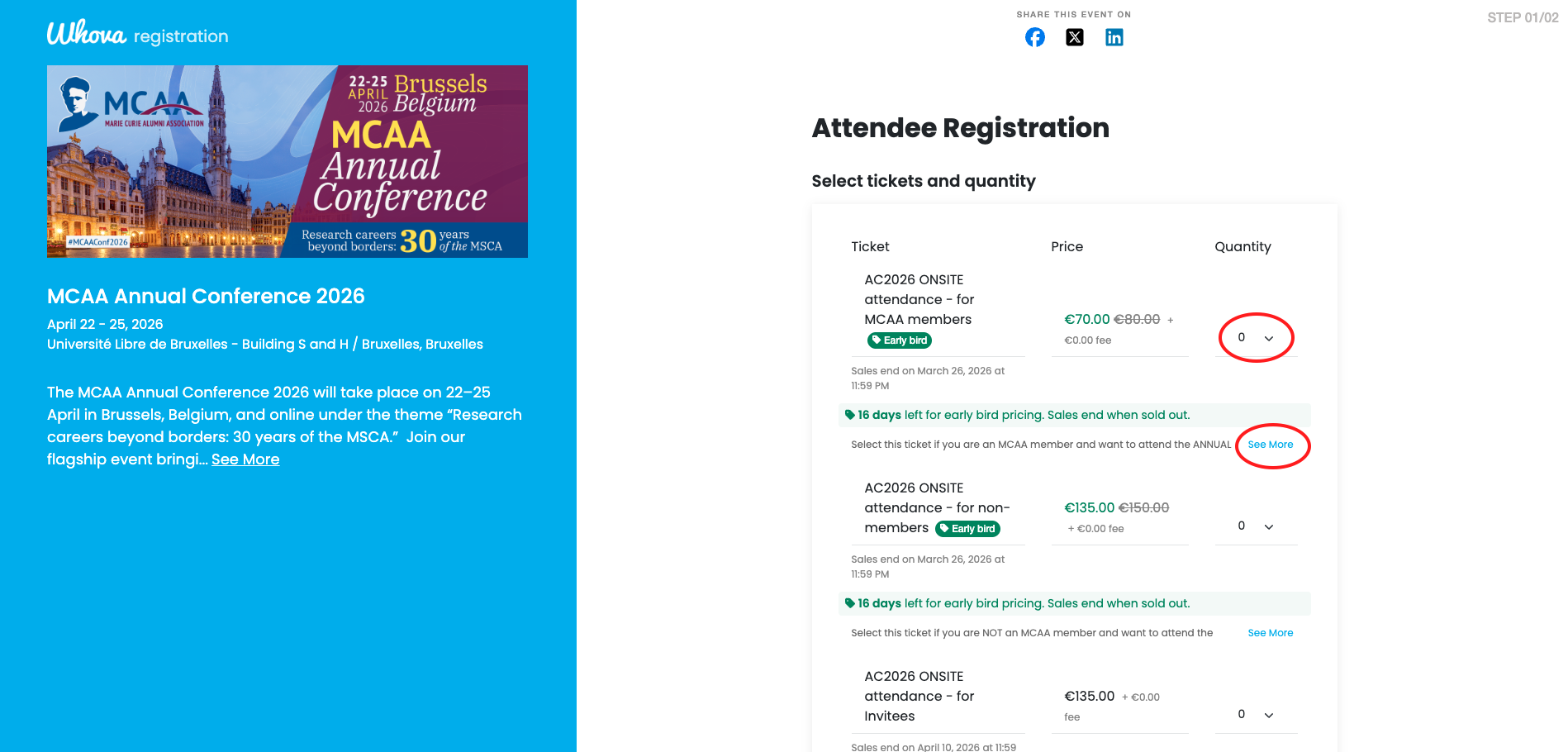
There are different ticket options for MCAA members, non-members, and invitees for the conference onsite and online participation and the gala dinner (only onsite).
If the event organisers have provided you with a discount/registration code (session speakers, moderators and organisers and micrograntees, representatives of partner organisations, MCAA project personnel, and European Commission personnel), you can apply it in the appropriate section of the form at the end of the page (see image below). The codes will be sent to the corresponding recipients soon.
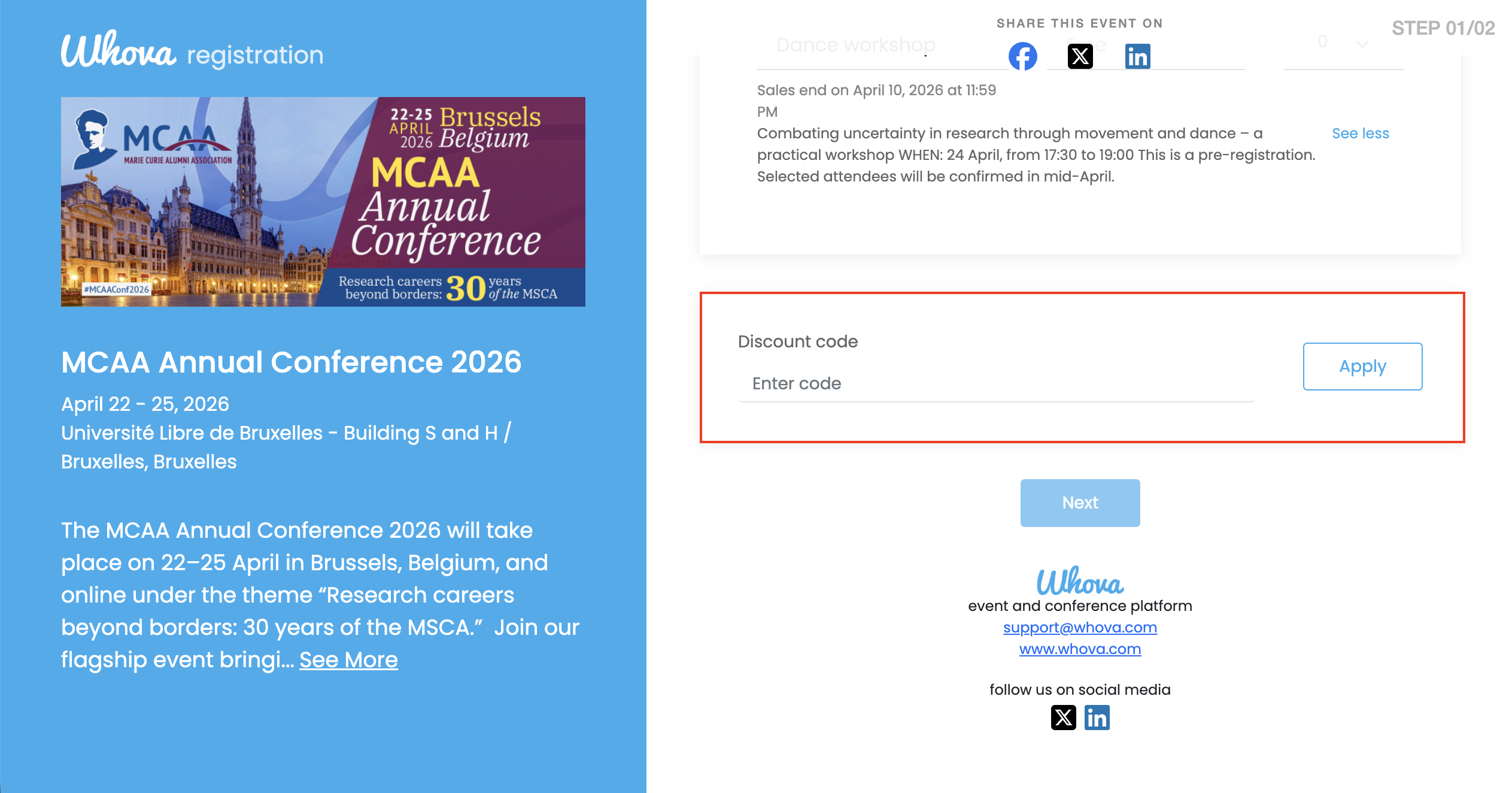
When selecting the tickets for the events and activities you want to attend, you can preview your order details on the left side of the page (see image below). Once you have added everything you need, click “Next” at the end of the page to proceed with your registration (see image below).
Step 2: Provide your registration information
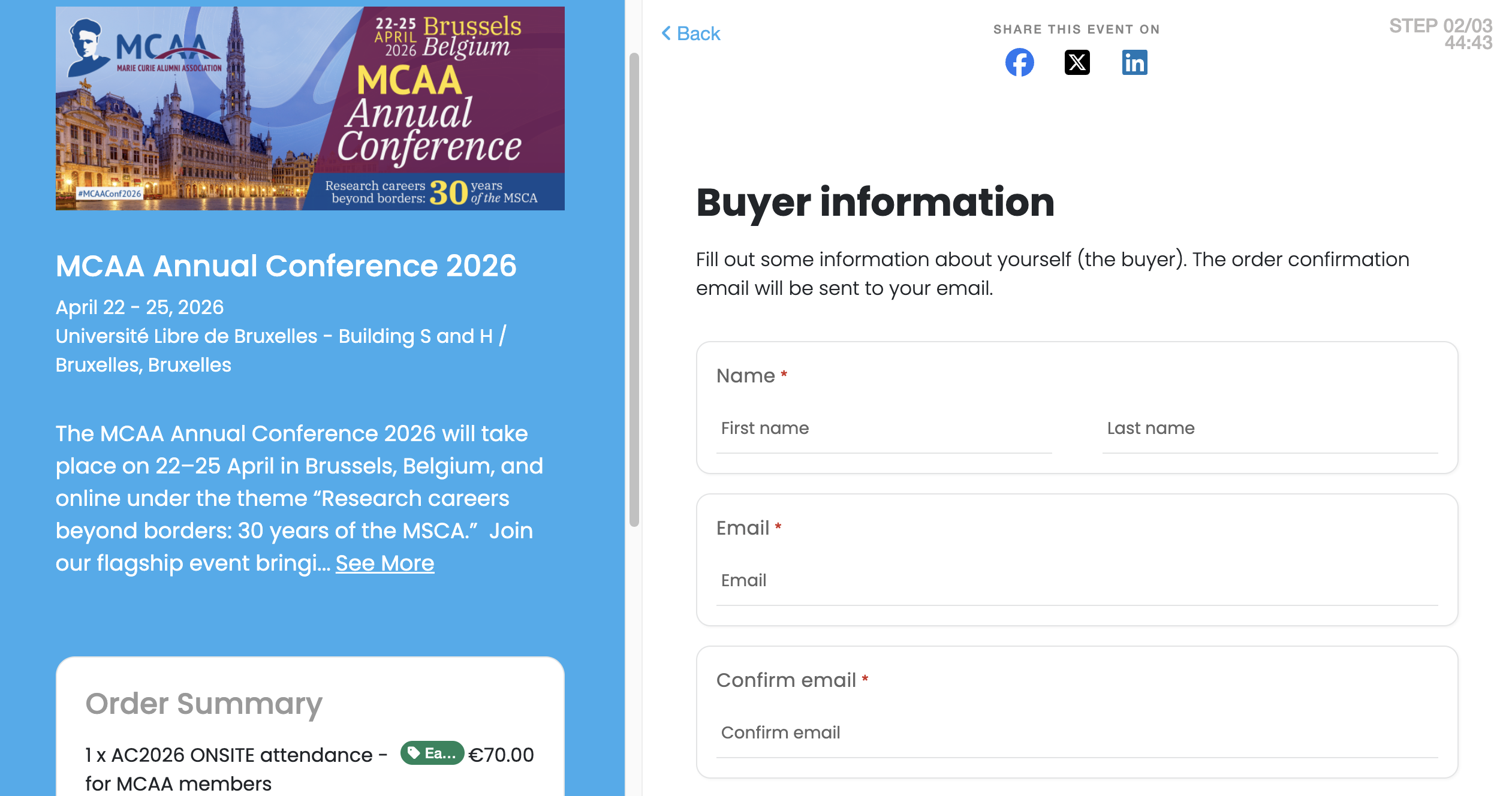
In this section, you are asked to enter your details for registration (see the image below). The registration fields are grouped by each ticket option added in step 1.
Mandatory fields are marked with a red asterisk (*). You cannot proceed to the next step without answering these questions.
Please follow the instructions provided for some of the fields, such as the “Nationality” field, where you are requested to use a specific spelling as provided here.
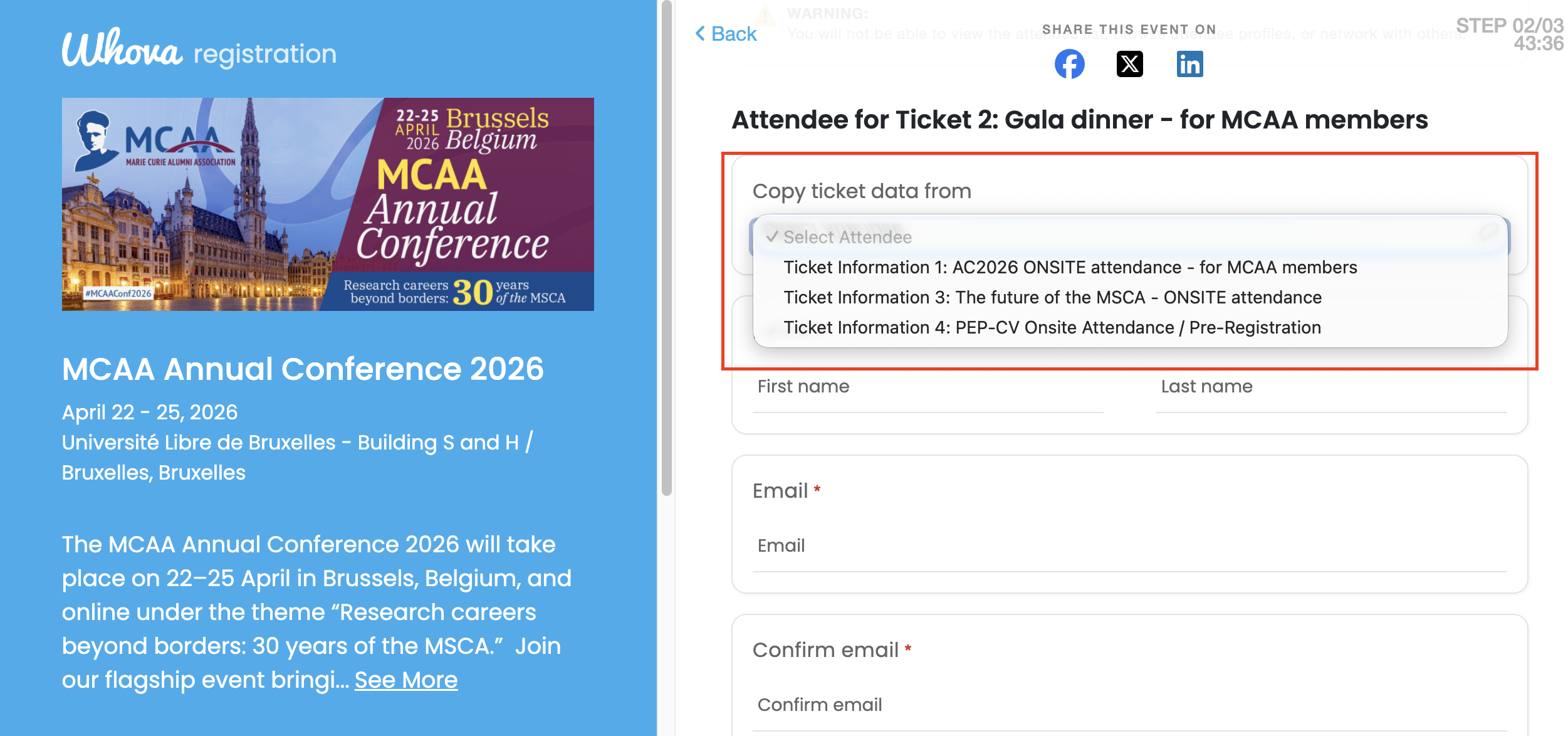
When filling in the fields for the different ticket types and activities you’ve selected, you can automatically copy the information you’ve inserted the first time by clicking on “Copy ticket data from” and selecting the appropriate option (see image below). You will find this field at the beginning of each ticket selection.
Step 3: Provide your payment details
In this section, you are asked to provide your payment details to complete your purchase and register for the event (see below).
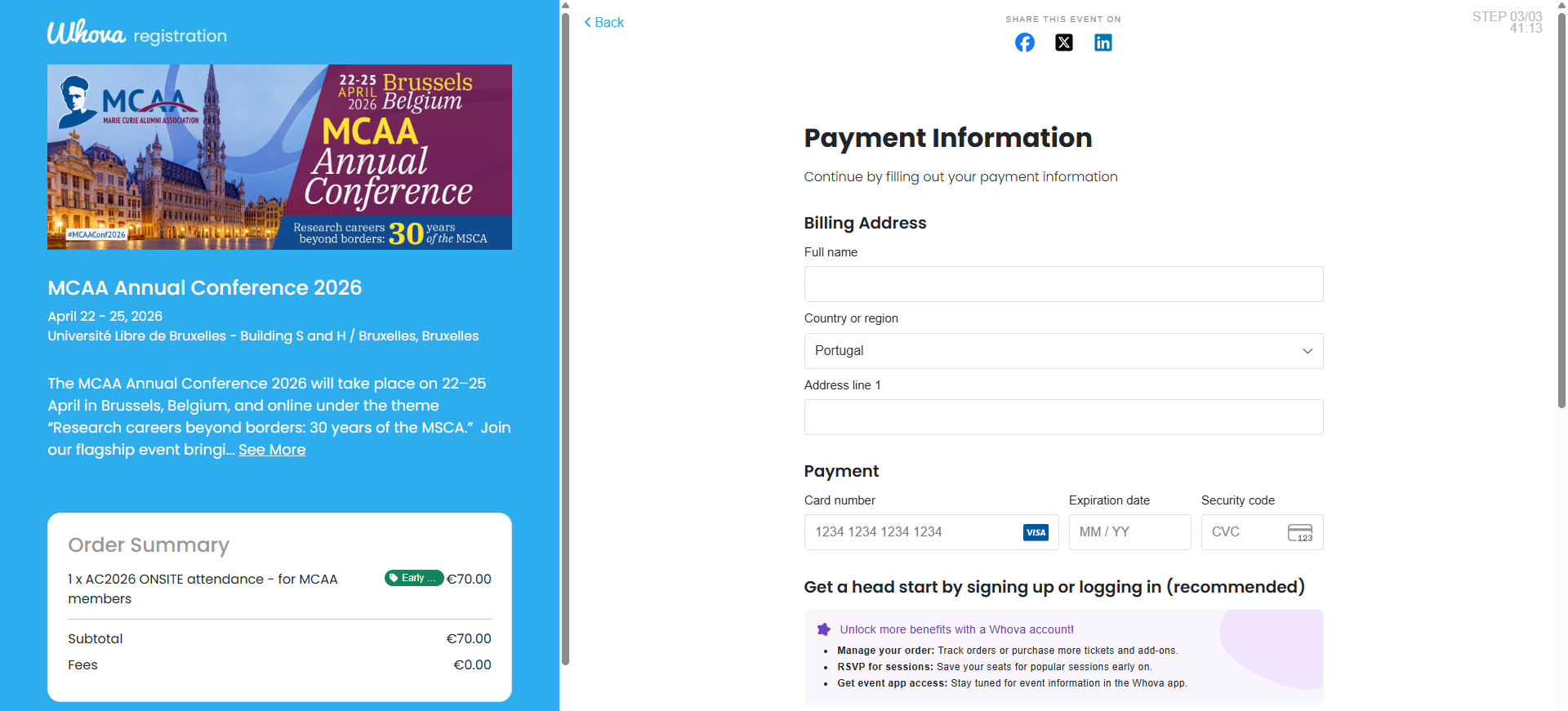
After entering all required details, you can complete your registration. To take full advantage of the Whova platform, including managing your order details, receiving conference updates, and engaging with other participants, you can create an account on Whova by setting a password and clicking “Register” at the bottom of the page. You will receive a confirmation at the email address you provided in step 2 to verify your account.
If you don’t want to create an account on Whova, you can simply select "Continue as a guest" at the bottom of the page. A registration confirmation will then be sent to the email address you provided in step 2.
If you have any doubts regarding the registration or wish to purchase tickets for multiple people (bulk purchase), please contact [email protected].
We look forward to welcoming you to our flagship event in April!